To set up subscriptions on Shopify you use a subscription app: Shopify takes care of the products, the checkout and the orders, and the app creates the plans and manages the running subscriptions. You choose an app, check that your payment provider supports subscriptions, put plans on your products, show the choice on the product page and set up the customer account, the emails and your terms. First the steps that apply to any app, then how it works with Loyalo.
What Shopify subscriptions need
The Shopify Help Center (read on 15 October 2026) lists a few conditions and limits. Go through them before you start, because they decide which app and which payment method you can use.
- A subscription app. Without one you see no subscription data in your Shopify admin.
- A payment provider that supports subscriptions: Shopify Payments, PayPal Express, Authorize.net, Adyen or Stripe. Stripe is available only to select merchants, and what is possible depends on your region.
- A sales channel that supports subscriptions: the online store, Shopify POS, Shop or a custom storefront.
- Orders through the checkout. Subscriptions can't be used with draft orders.
According to the same Help Center, local, manual or non-credit-card payment methods might not be available for subscriptions. For a Dutch shop that matters: iDEAL is such a local payment method. Further down you can read how to get round that.
A gift card applies only to the first payment of a subscription, according to the Shopify Help Center. And the checkout always shows a subscription disclosure: you can't remove it on any plan. Only on Shopify Plus can you edit the label and the consent text.
How to add subscriptions to Shopify in eight steps
- Choose a subscription appShopify has its own app, Shopify Subscriptions. According to the Help Center it offers weekly, monthly and yearly plans with discounts, skipping, pausing and cancelling, a widget, emails and management in the customer account. Other apps add things such as other payment methods or a portal of their own. Compare on what you need.
- Check your payment providerSee whether your provider is in the list above and whether it supports subscriptions in your country. If you want to offer iDEAL, check whether your app handles that itself.
- Create plans on your productsA plan, in Shopify a selling plan, sets how often the customer gets something and at what discount. You create it in the app and link it to products or variants.
- Put the choice on your product pageAs a rule you add an app block of your subscription app to the product form in the theme editor. Only then does the customer see the choice between a one-time purchase and a subscription.
- Set up the customer accountCustomers want to skip, pause or cancel themselves. Put the subscriptions page in the Shopify customer account or use your app's portal.
- Set up the emailsThink of a confirmation at the start, a reminder before the next delivery and a message when a payment fails. Get your sender and your brand style right.
- Place a test orderOrder a subscription yourself and check that it shows in the app, that the order is right and that the email arrives. Try skipping and cancelling too.
- Sort out your termsPut in your terms and conditions how long a subscription runs, how it renews and how the customer cancels. More on that below.
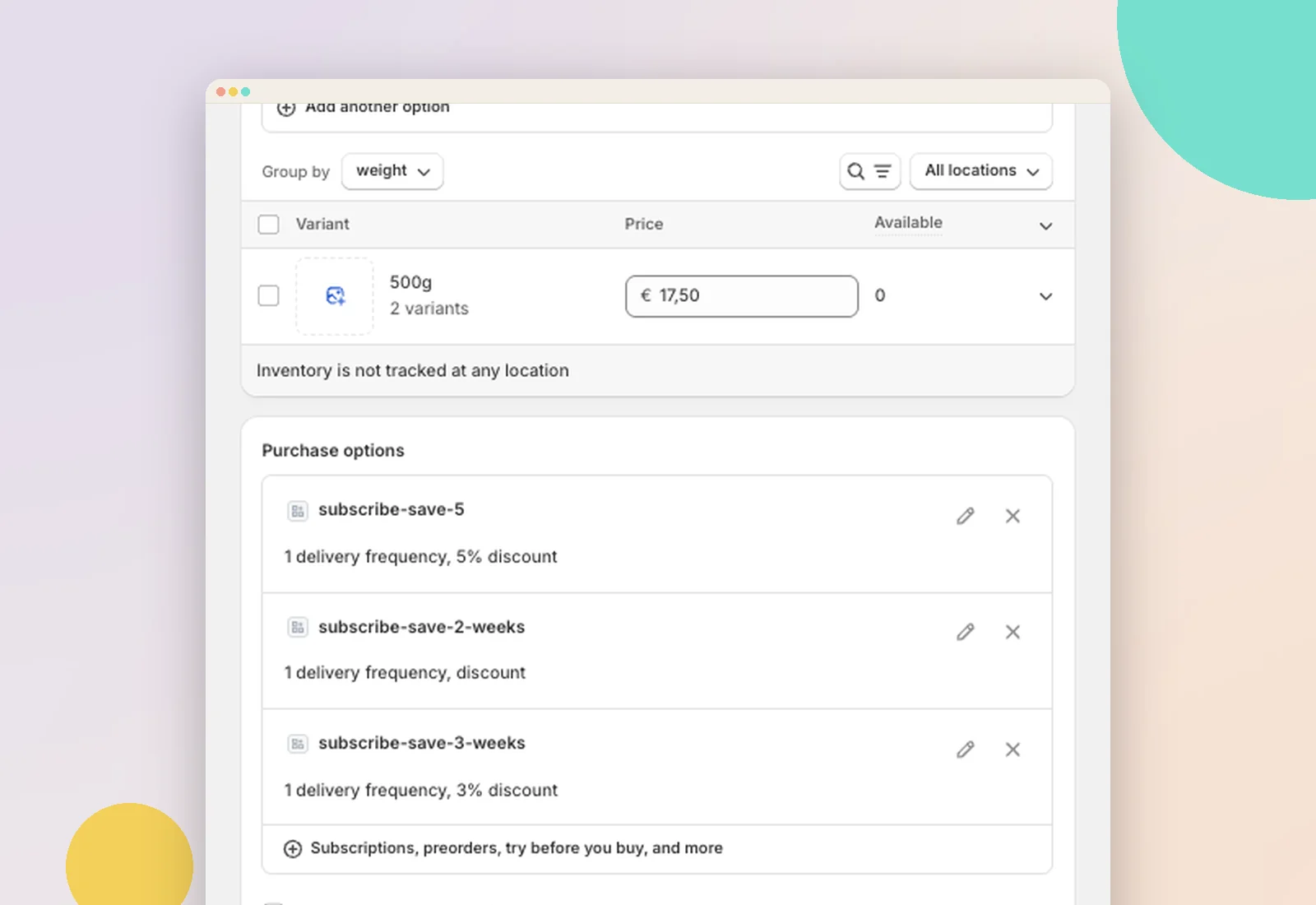
Plans: frequency and discount
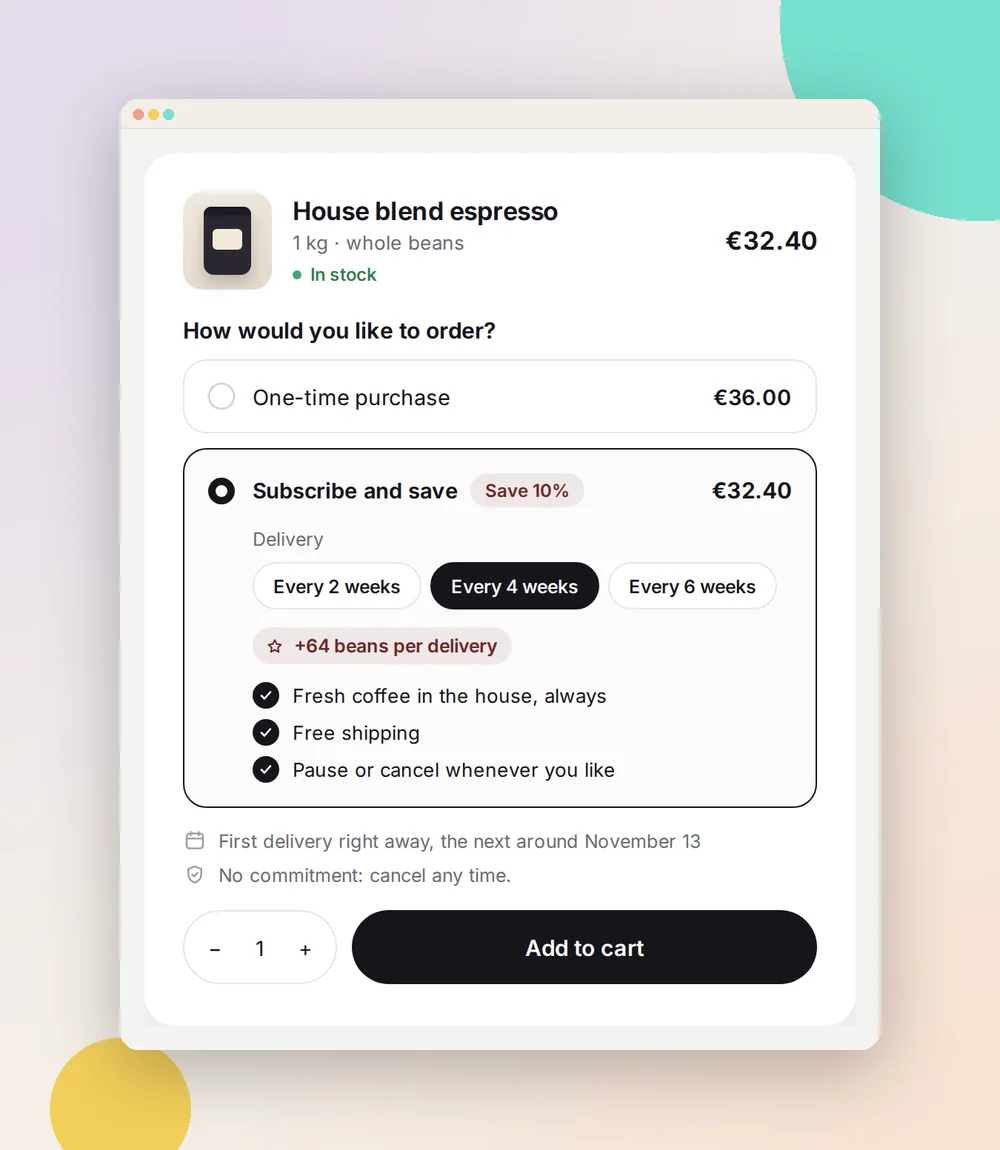
Start small. Two or three frequencies are enough, for example every 2, 4 or 6 weeks for coffee. Choose frequencies that match how fast a customer uses the product up. A subscription discount is common but not required; a regular delivery without hassle is reason enough for some customers.
A worked example for Brandpunt Koffie: a bag of € 17.50 with 10% off costs € 15.75 on subscription. Check that your margin can carry that discount, with the shipping costs per delivery included.
Subscriptions and the Dutch rules
If you sell to consumers in the Netherlands, a subscription that renews automatically is allowed. After the first term, though, the customer must be able to cancel at any time with a notice period of at most one month, and cancelling must be possible online when the customer signed up online. Our article on the Dutch Van Dam Act covers this in more detail.
Separately, since 19 June 2026 an online shop in the EU must have an online function with which the customer withdraws from the purchase. Withdrawing is not the same as cancelling: cancelling stops the subscription for the future, withdrawing reverses the purchase. See our article on the withdrawal button. Both articles are general information, not legal advice.
How it works with Loyalo
You install Loyalo with an install link you get after a demo or through info@loyalo.ai. On the 'Get started' page you choose the subscriptions goal. You then see the steps, and Loyalo ticks most of them off itself once they are done.
- Create a planOpen Subscriptions > Plans and choose 'New plan'. Give it an internal name and a heading the customer sees, add frequencies (every so many days, weeks, months or years) with a discount per frequency, and choose the products or variants.
- Put the choice on your product pageIn the theme editor, add the block 'Loyalo abonnementskeuze' to the product form. You set the look and the texts under Settings > Widget.
- Put 'Subscriptions' in the customer accountIn Shopify, go to Settings > Customer accounts and add the page to the menu. What customers may do themselves you decide under Subscriptions > Settings.
- Connect Mollie for iDEALOptional. Under Settings > iDEAL (Mollie) you enter the API key of your own Mollie account and switch on iDEAL subscriptions.
- Set your sender and emailsUnder Settings > Emails you choose the sender, the layout and the language, and switch each email on or off.
- Switch on collectingUnder Subscriptions > Settings. Only do this when the rest is in place.
- Choose a Loyalo planUnder Settings > Loyalo subscription. The first 14 days are free.
The plans are put on your products as regular Shopify selling plans. Orders, customers and products stay in Shopify, and a subscription order is a regular Shopify order with the plan on it. The minimum term and the notice period apply to all plans and are set under Subscriptions > Settings.
The subscription choice on the product page
The widget only appears on products that are in a plan. Under Settings > Widget you choose a style, colours, texts and labels, and a link 'How does our subscription work?' with an explanation. You save a new design as a draft first; with an A/B test half of the visitors see the draft and you see per version how often a subscription went into the cart.
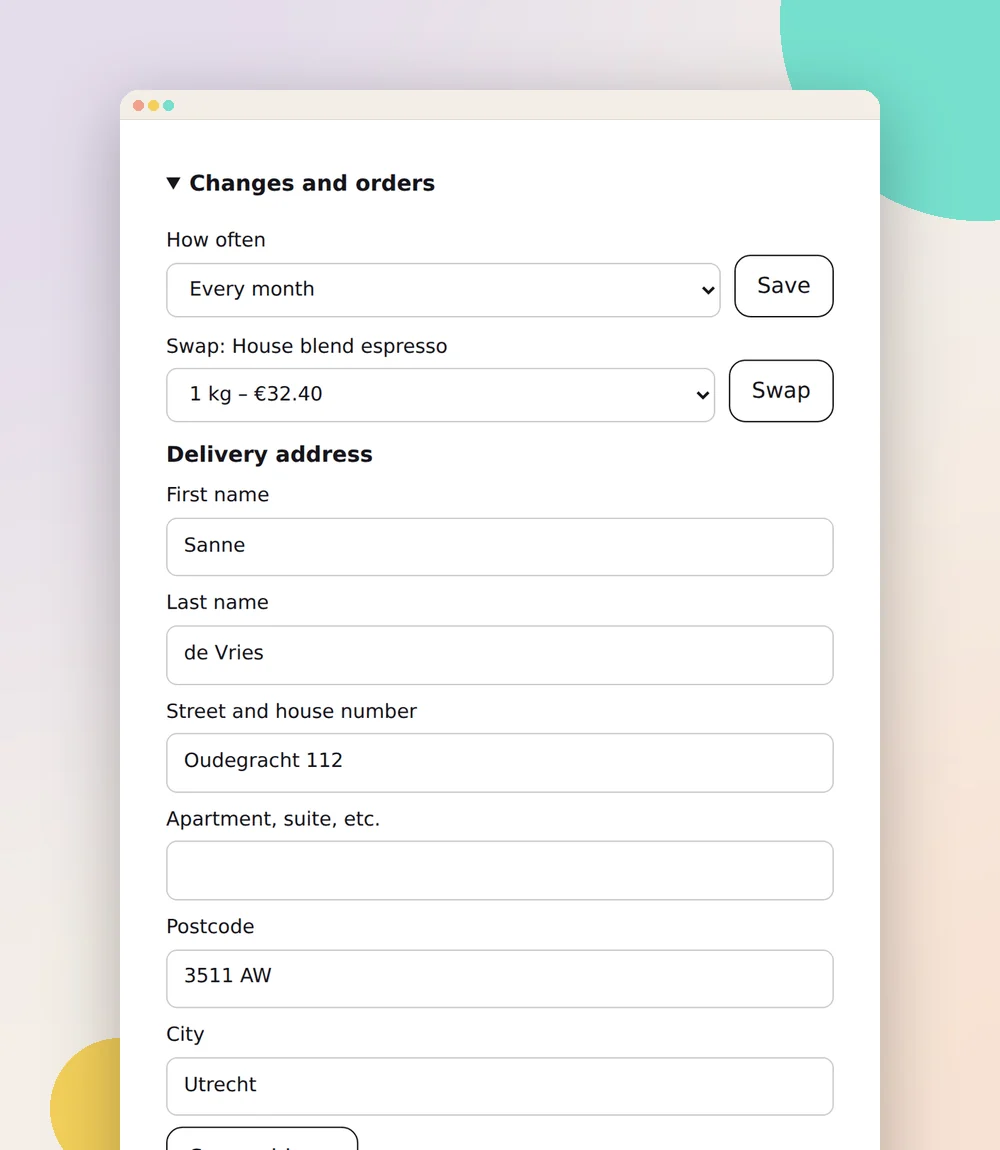
Customer portal: self-service
The customer manages their subscription in the Shopify customer account, or without a Shopify login through a login link by email. You switch the latter on under Subscriptions > Settings with 'Manage without Shopify login'. There you also choose, item by item, what the customer may do: pause, skip, move the delivery date, choose another frequency, swap product, change the address, renew the payment method and cancel. Leave cancelling switched on.
iDEAL for subscriptions
As a rule Shopify does not show iDEAL in the checkout once there is a subscription in the cart. Loyalo solves that with an iDEAL button of its own and your own Mollie account. The customer pays the first order with iDEAL. From that payment Loyalo creates a SEPA direct debit mandate in your Mollie account, and the next deliveries are collected automatically. The money comes straight to you.
- You need your own Mollie account with iDEAL and SEPA direct debit switched on, and the Mollie app in your Shopify checkout.
- You switch on the iDEAL button in the app embed 'Loyalo' in the theme editor.
- With a test key from Mollie you try everything without real payments.
- One-time purchases and subscriptions by card keep going through your regular Shopify checkout.
Emails, testing and the rules
Loyalo sends emails at the start, a pause, a cancellation, an upcoming delivery and a failed payment, in your own brand style and in Dutch, English or German. The email about the next delivery has buttons to skip or reschedule without logging in. You can send yourself a test of every email.
Then place a test order. With iDEAL you order a subscription through the iDEAL button and check under Subscriptions that it is there with payment method iDEAL. For withdrawals Loyalo puts a page in your shop where the customer withdraws without logging in; you find it under Subscriptions > Withdrawals. Whether your shop meets the rules depends on your terms and your settings.
Frequently asked questions
Can I sell subscriptions on Shopify without an app?
No. According to the Shopify Help Center you need a subscription app to see subscription data in your admin. Shopify does have its own app, Shopify Subscriptions.
Which payment providers work with Shopify subscriptions?
The Shopify Help Center lists Shopify Payments, PayPal Express, Authorize.net, Adyen and Stripe, with Stripe available only to select merchants. What is possible also depends on your region.
Can a customer pay for a subscription with iDEAL on Shopify?
Not in the standard checkout: according to Shopify, local payment methods might not be available for subscriptions. With Loyalo the customer pays the first order with iDEAL and the next deliveries are collected by SEPA direct debit, through your own Mollie account.
Do I need Shopify Plus for subscriptions?
The Shopify Help Center only names editing the label and consent text in the checkout as a Shopify Plus feature. The subscription disclosure itself stays on every plan.
Do subscriptions work with draft orders?
No. According to the Shopify Help Center, subscriptions can't be used with draft orders.
Can a customer use a gift card for a subscription?
Only for the first payment, according to the Shopify Help Center.
Can I move existing subscriptions to Loyalo?
Yes. Choose the goal 'Migrate' on 'Get started'. You copy the plans and import the running subscriptions from a CSV file, without customers getting an email.
What does Loyalo cost for subscriptions?
Growth costs € 99 a month for up to 250 active subscriptions and Scale € 299 a month above that, both excluding VAT. There is no fee per order and the first 14 days are free.
Subscriptions in your own shop
In a demo we show how you create a plan, put the choice on your product page and connect iDEAL.
Request a demo