One click from the email
The email about the next delivery has buttons to skip or reschedule right away. The link works once and asks for no login.
Skip a delivery, move the date, choose another flavour or change the address: your customer does it in the portal, without a password and without emailing your support team. You decide what is allowed.
Most questions about a subscription are the same: when does it come, can it be later, can it be different. The portal holds the answer and the button to arrange it.
The customer sees what they get, what it costs and when the next deliveries come. Skip, pause and reschedule are right below.
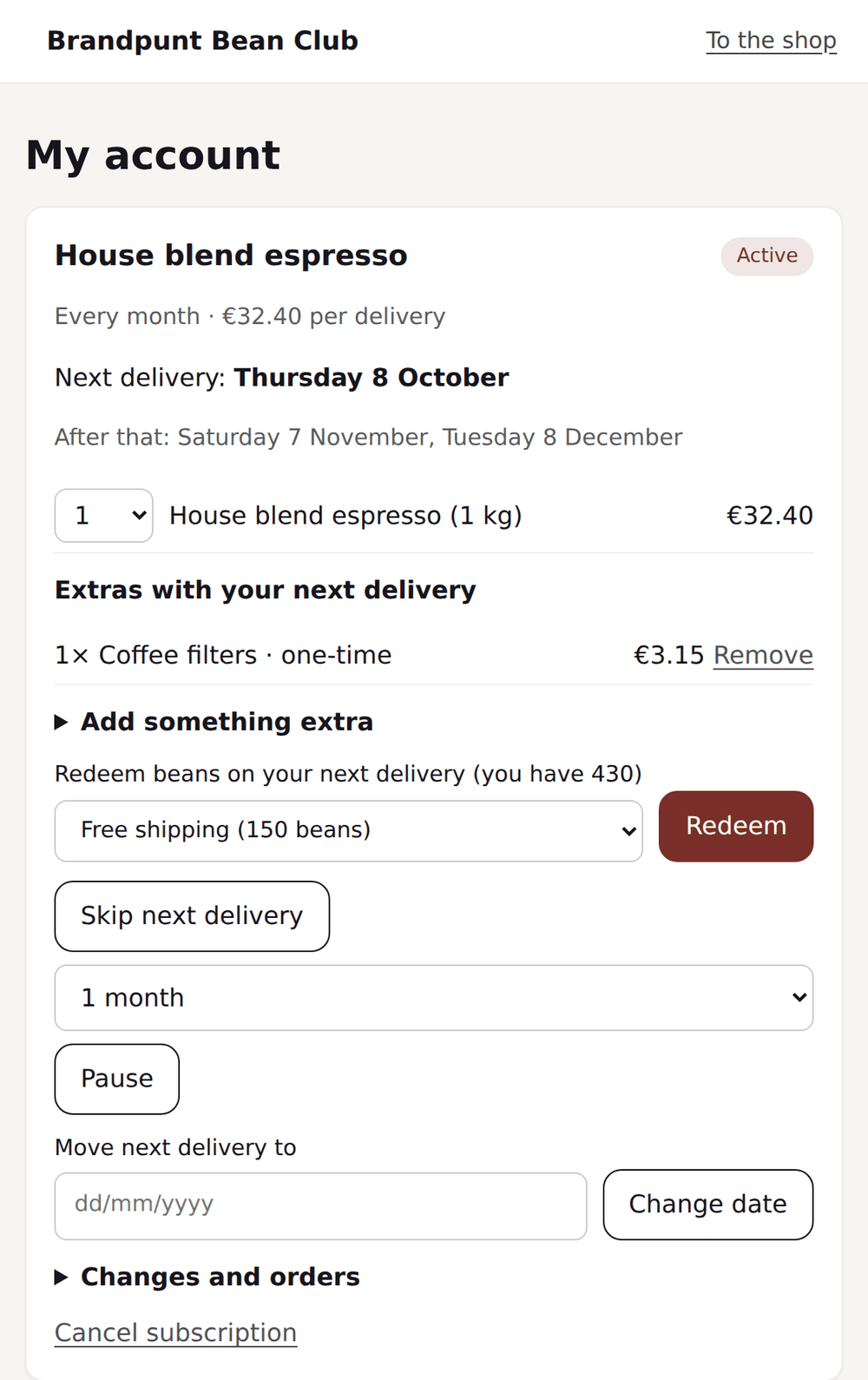
A customer who wants another flavour or moves house does not have to cancel and start over. They change the subscription and keep their discount.
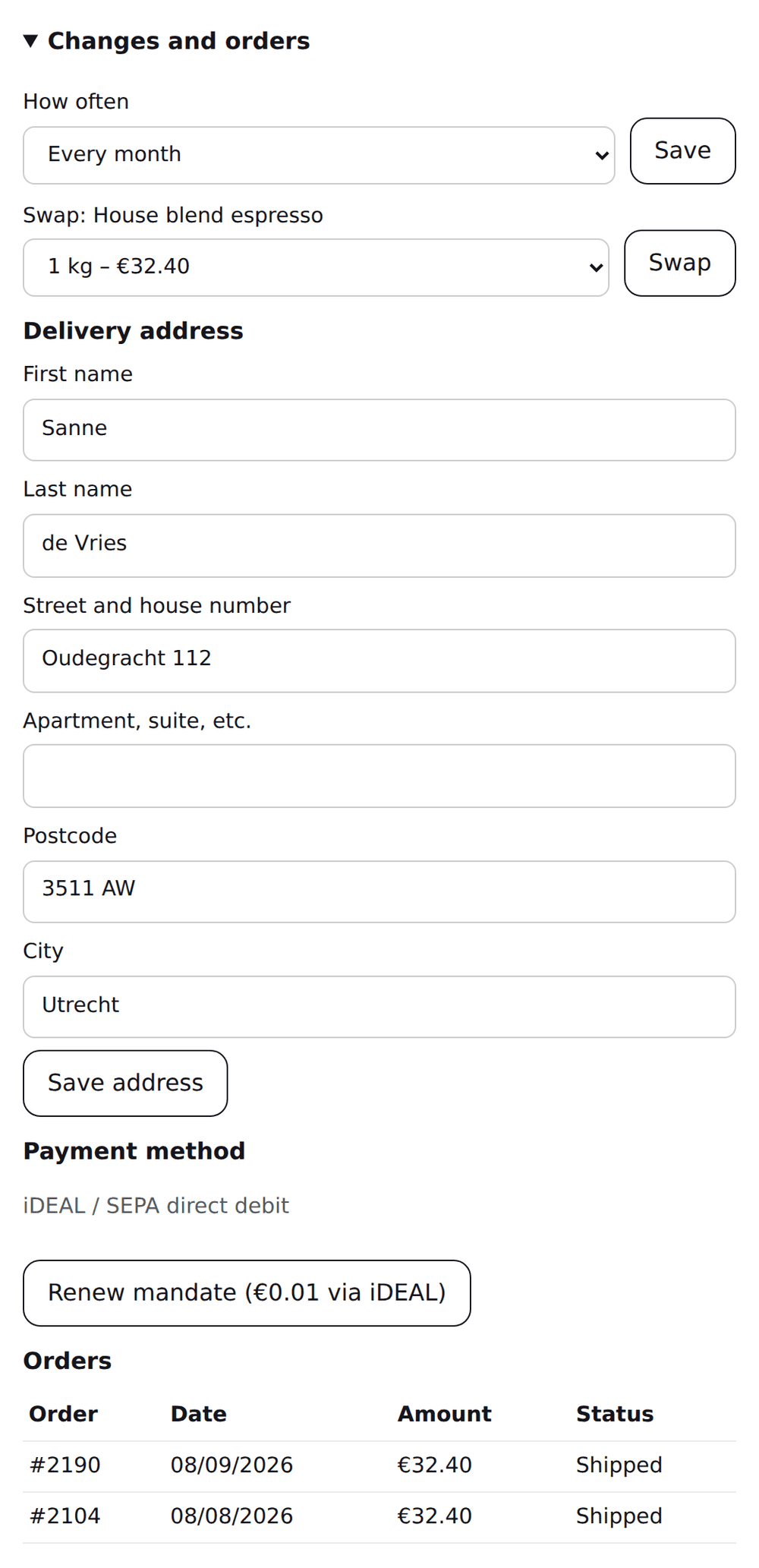
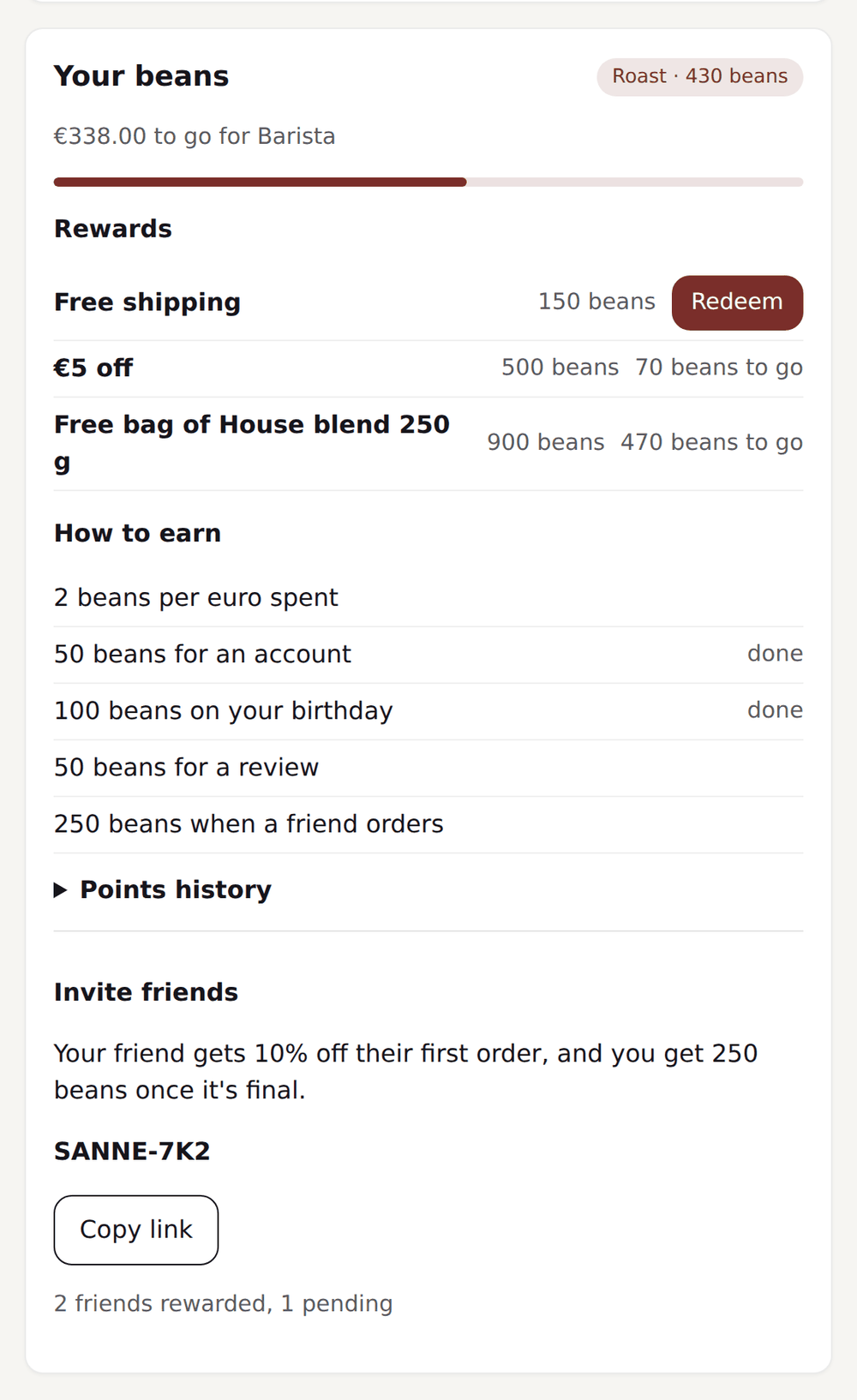
When you use Customer Loyalty, the customer sees their balance, their tier and the rewards that are ready in the same portal. Redeeming a reward on the next delivery takes one button.
You choose one place or use them side by side. Everywhere the customer sees the same subscription and the same buttons.
| Place | How the customer gets there | Useful when |
|---|---|---|
| Shopify customer account | Logged in to their account, through the pages Subscriptions and Loyalty | Your customers already use Shopify's customer account |
| Portal in your store | Without a Shopify login: the customer asks for a login link by email | Customers have no account or forgot their login |
| Own portal | On your own subdomain, with a login link as well | You want one address in your brand, for subscription and points |
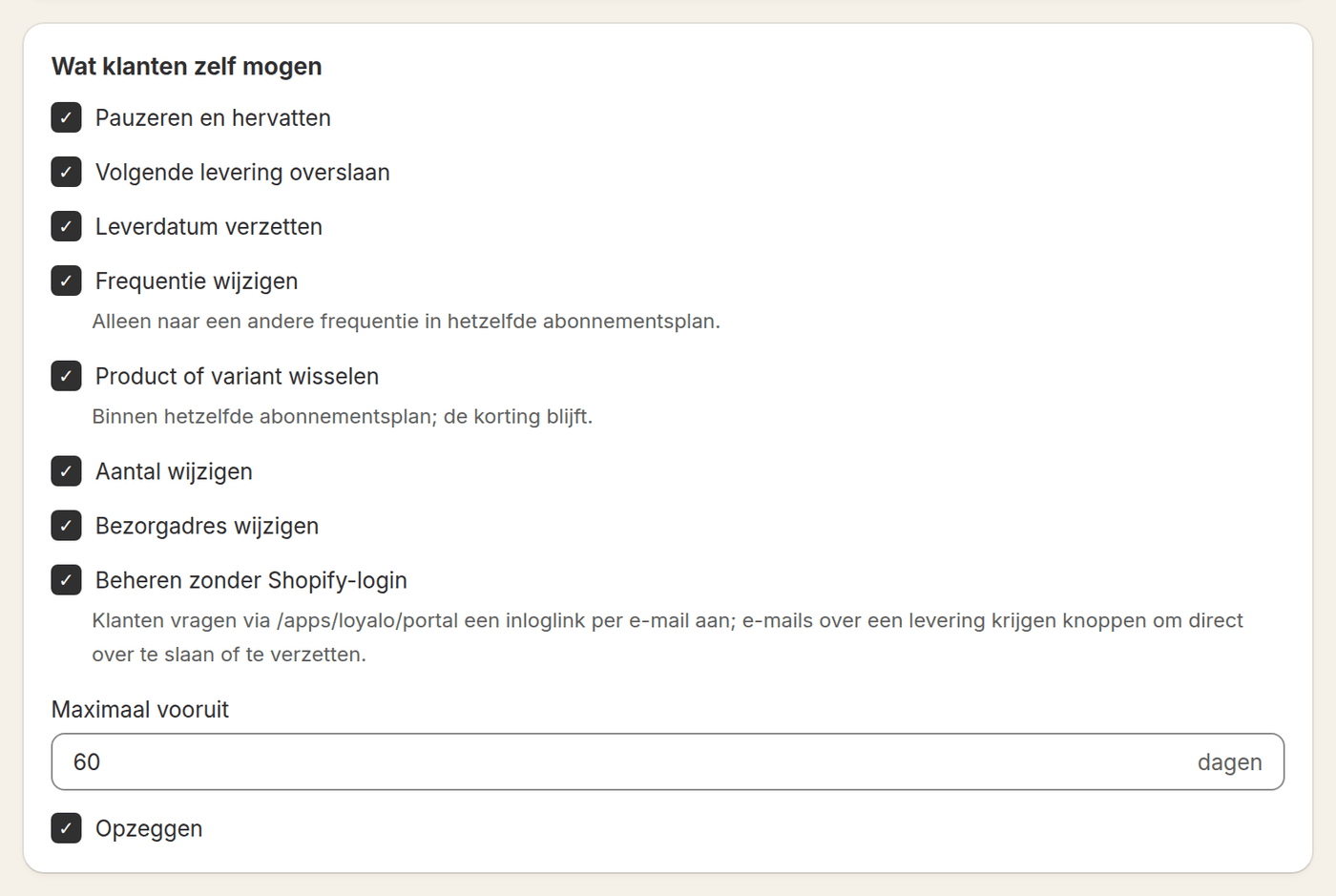
Not every store wants to allow the same. You switch on or off, per item, what customers may arrange themselves. Whatever is off, you still do for the customer in the dashboard.
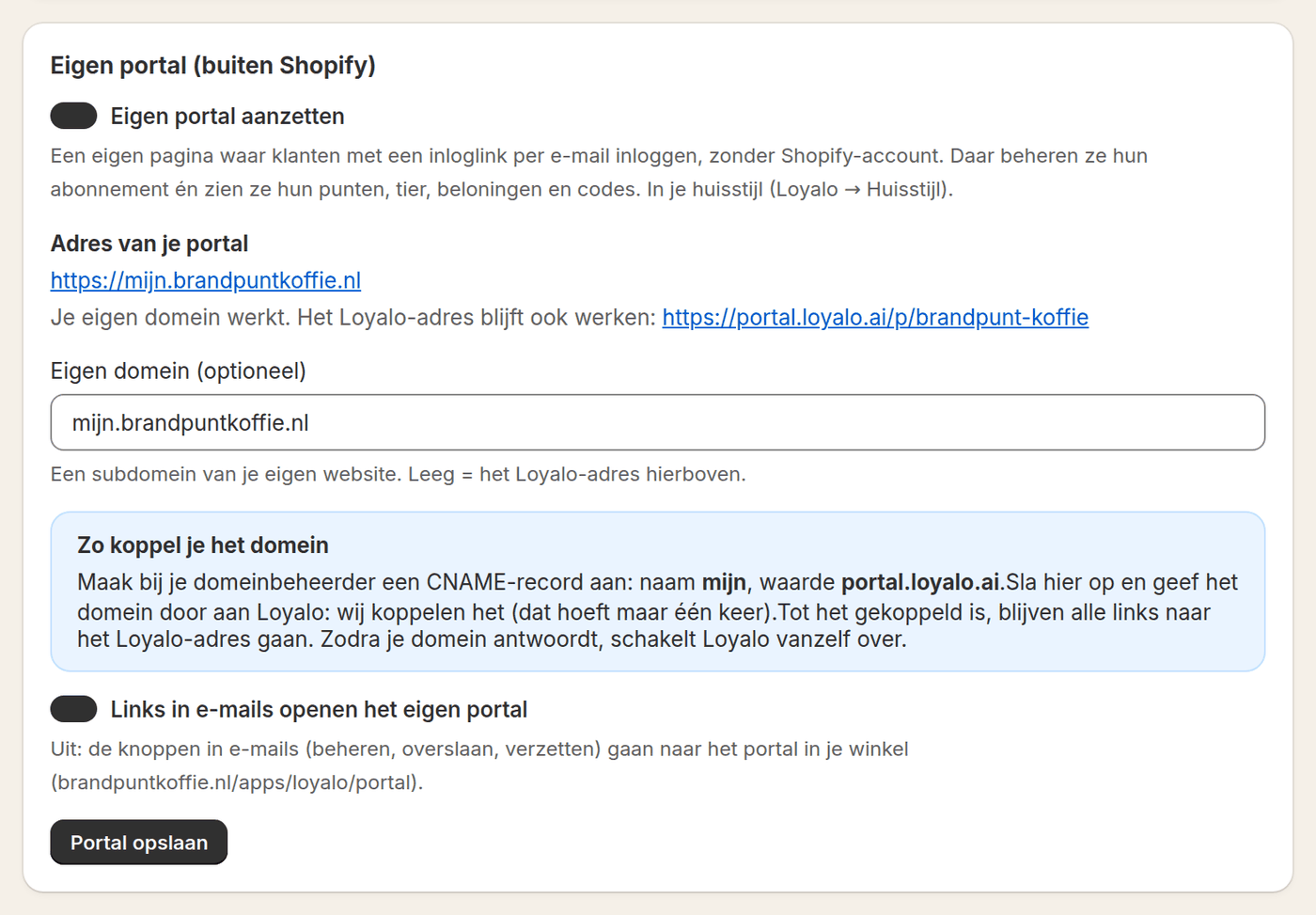
Switch on the own portal and customers log in on an address such as my.yourstore.com. You create one CNAME record with your domain provider for it. Until the domain is connected, the portal works on a Loyalo address.
The portal works together with the emails Loyalo sends. Often the customer does not even have to log in.
The email about the next delivery has buttons to skip or reschedule right away. The link works once and asks for no login.
Confirmation, paused, resumed, cancelled, payment failed and the reminder for the next delivery, with your own logo and colours.
In the portal the customer adds a single product to the next delivery. You choose the products and the discount for subscribers.
Someone who wants to cancel picks a reason and gets a fitting alternative once: a discount, a skip or a pause.
Read moreA few rules you would rather know now than when a customer asks.
Setting up the customer portalA page where a customer manages their subscription themselves: pause, skip a delivery, move the date, choose another product, change the address or cancel. It saves your support team work and the customer does not have to wait for an answer.
No. In the Shopify customer account they are logged in already. Outside it they ask for a login link with their email address and get into the portal with one click.
Yes. You switch on the own portal and connect a subdomain of your website with a CNAME record. Until then it works on a Loyalo address.
Yes. In the portal customers swap variant and product, as long as the product is in the same subscription plan. They keep their discount.
Yes. The email about the next delivery has buttons to skip or reschedule right away, without logging in.
Yes. In the portal customers add an extra product to the next delivery. The extra ships on that delivery's order and is charged with it. After that it is gone again.
The customer picks a reason and gets an offer once that fits it, for example skipping a delivery or a discount on the next deliveries. When they still choose to cancel, the subscription is cancelled and Loyalo keeps the reason.
Yes. Under Subscriptions > Settings you switch on or off, per action, what customers may do themselves, cancelling included. In the dashboard you can still do everything for the customer.
Business customers see their company's standing orders in their customer account and can have an earlier order repeated.
Read on: Setting up the customer portalEmails and brand styleBlog: a customer portal that converts
In half an hour we show you how Loyalo works in your shop, or we send you an install link right away. The trial runs for 14 days and needs no credit card.
In a demo we walk through the portal the way your customer sees it, and the settings behind it.