Creating a rule
- Open Volume discountIn the dashboard menu choose Volume discount and switch on 'Volume discount on'.
- Add a ruleClick 'Add rule' and give the rule a name. The customer sees that name with the discount in the cart and at checkout.
- Choose who and which productsA rule applies to everyone, to consumers only or to business customers only. You choose all products or up to 100 products per rule.
- Fill in the stepsPer step the quantity at which it starts and the discount percentage. A higher quantity has to give more discount. Under the steps you see a worked example for a product of 10 euros.
- SaveLoyalo creates the discounts in Shopify. Each step shows its status: active in Shopify, being updated, or the reason Shopify refused it.
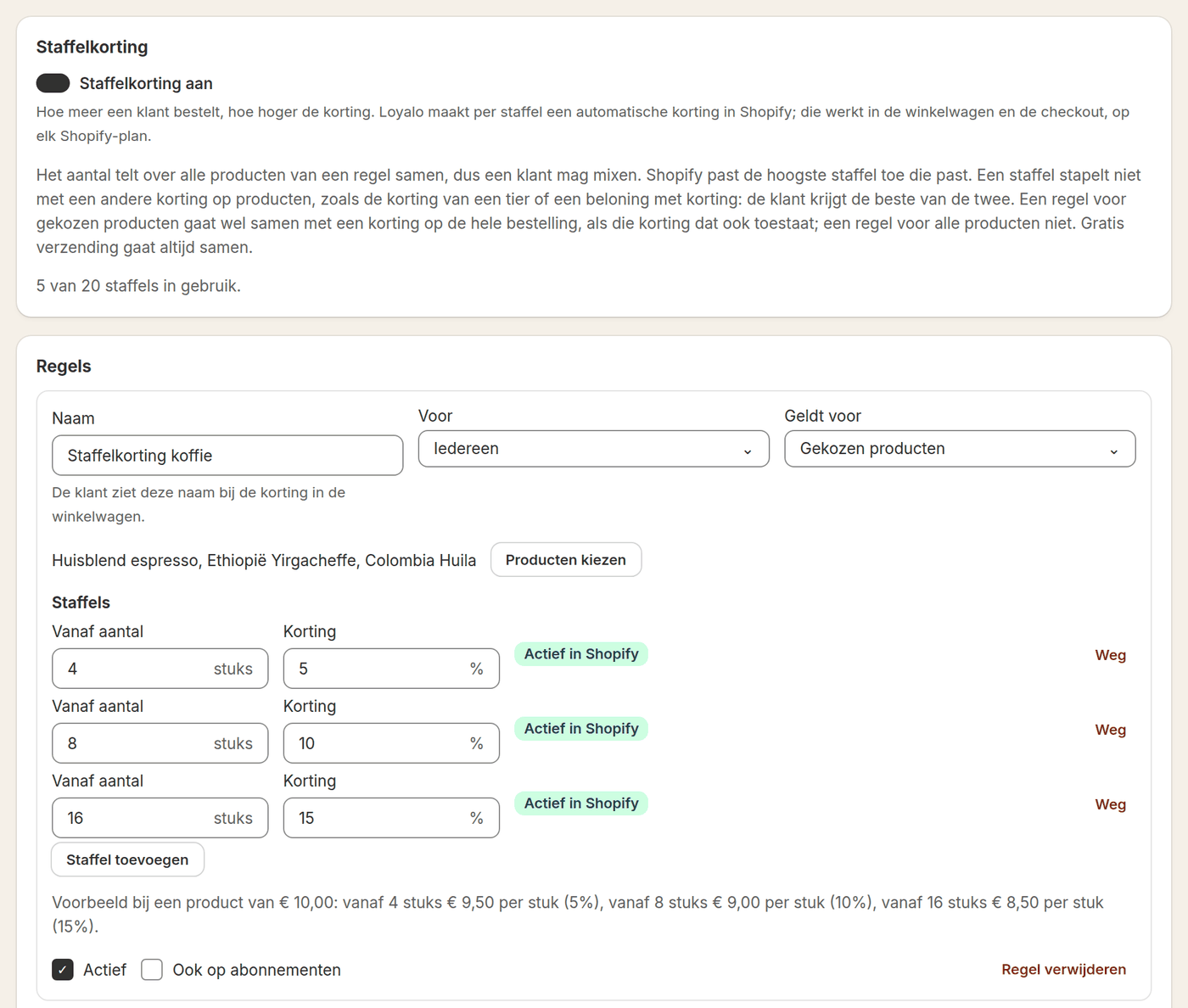
What you set per rule
| Setting | What it does |
|---|---|
| Name | The name the customer sees with the discount, 60 characters at most |
| For | Everyone, consumers only or business customers only |
| Applies to | All products, or products you choose yourself |
| Steps | Up to 4 per rule. A step starts at 2 items or more, the discount is between 0.5% and 90% |
| Also on subscriptions | Off by default, because a subscription usually has its own discount |
| Active | Switch a rule off for a while without deleting it |
You can create 6 rules with 20 steps in total. Shopify allows 25 active automatic discounts per shop, and those of other apps and your own count as well. When that limit is reached, you see it at the step Shopify refuses.
How the discount is calculated
- The quantity counts across all products of the rule together. So a customer may mix: 3 of one product and 5 of another make 8.
- When the customer reaches a step, the percentage applies to all items of those products, not only to the extra items.
- When several steps fit, also from different rules, Shopify applies the step that gives the customer the most. Steps are not added up.
- The discount shows as a separate line in the cart and at checkout, with the name of your rule.
Together with other discounts
| Other discount | What happens |
|---|---|
| Tier discount or a reward with a discount | Does not stack. The customer gets the better of the two |
| Discount on the whole order | Combines with a rule for chosen products, if that other discount allows combining too. It does not combine with a rule for all products |
| Free shipping | Always combines |
| Subscription discount | A step only applies to subscriptions when you switch on 'Also on subscriptions' |
The steps on your product page
The discount works without touching your theme. To show the steps before the customer orders, add the block 'Loyalo staffelkorting' to the product page in the theme editor. The block shows the price per item for each step, follows the chosen variant and highlights the step that goes with the chosen quantity.
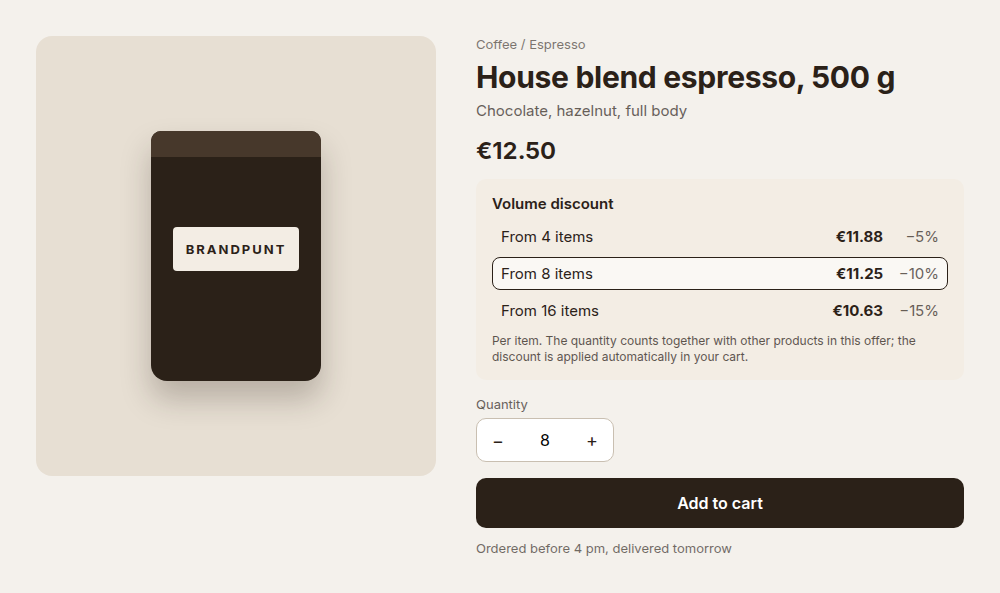
In the block you change the title, the text per step, the explanation and the colours. When no step applies to a product, the block shows nothing.
Business customers
A step for business customers comes on top of the price from the company's catalog in Shopify B2B, and also applies to standing orders placed by Loyalo.
A rule for business customers only applies to customers with the tag loyalo-b2b in Shopify. Loyalo sets that tag itself when you switch on 'Write profile to Shopify' under Loyalty > Tiers, in Customer groups. You can also give a customer the tag yourself. A rule for consumers only applies to everyone without that tag.
Do I need Shopify Plus?
No. Loyalo uses Shopify's automatic discounts, and those work on every Shopify plan.
Is volume discount part of my plan?
Yes, volume discount is part of every Loyalo plan.
Can a customer mix products to reach a step?
Yes. The quantity counts across all products of the rule together. If you want a step per product, create a rule for each product.
Why does a step say it is being updated?
Loyalo creates the discounts in Shopify in the background. That usually takes a few seconds; the page refreshes by itself.
Where do I see the discounts in Shopify?
In your Shopify admin under Discounts. They are named after your rule. Change a step in Loyalo and not in Shopify, otherwise the overview in Loyalo is no longer right.
Can I give a fixed amount per item instead of a percentage?
No, a step is a percentage. The block on the product page converts the percentage into a price per item for the customer.
Standing orders for business customers
Switch on standing orders for companies in Shopify B2B: choose the frequencies, decide what customers can change and manage every order in your dashboard.
Tiers and customer groups
Set up tiers on amount spent, orders, points or volume, give a discount and free shipping per tier, and keep consumers and business customers apart.
Widget on the product page
Put the subscription choice on your product page and set the look, texts and labels. Try a new design as a draft or with an A/B test first.