Creating a reward
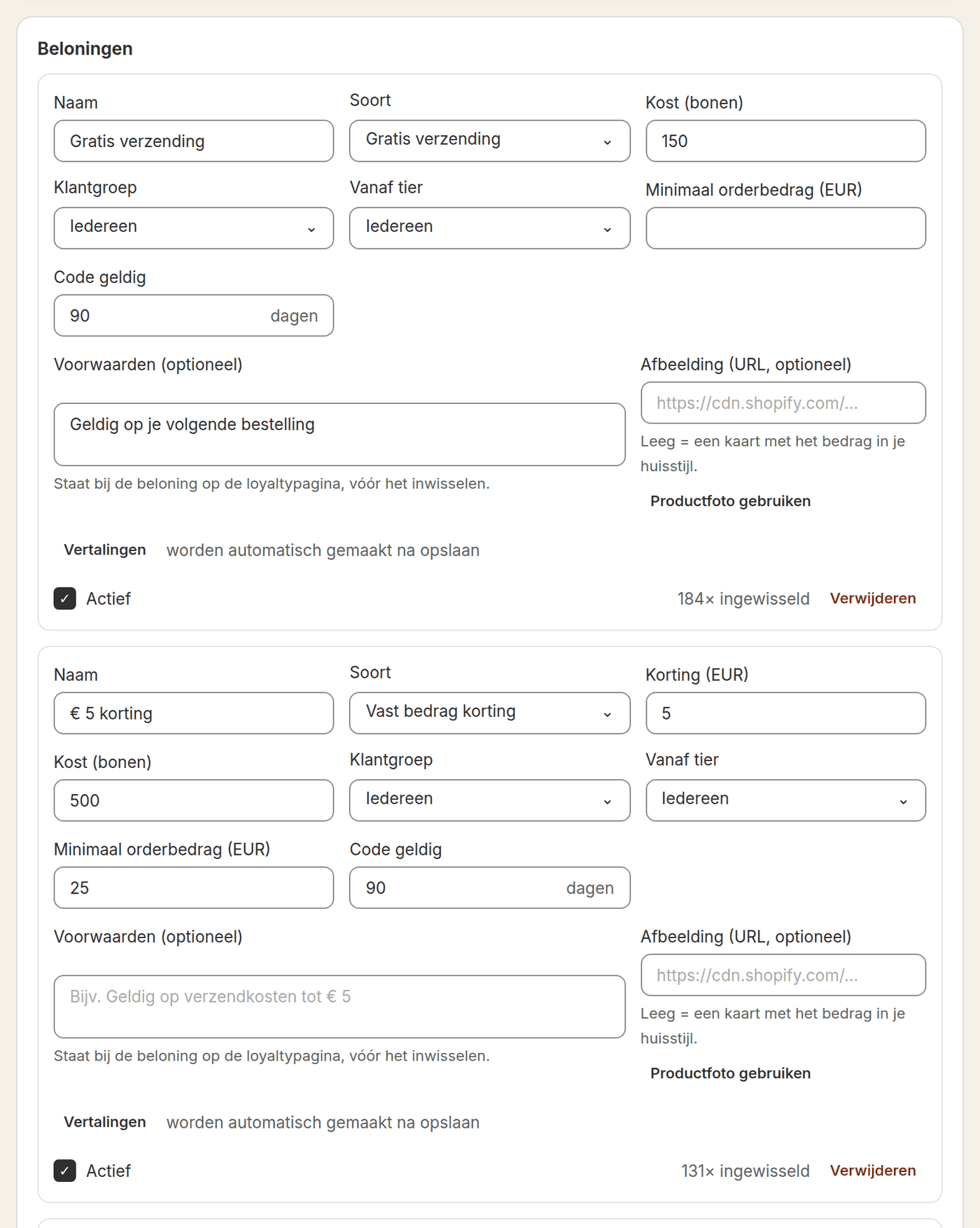
- Choose the kindGo to Loyalty > Rewards and add a reward. Choose one of the six kinds in the table below.
- Enter the value and the costThe value is the amount, the percentage or the product. The cost is the number of points the customer hands in.
- Decide who it is forChoose a customer group (everyone, consumers or business) and optionally a tier from which the reward is available.
- Set conditionsA minimum order amount and how many days the code is valid. The text under Conditions is shown with the reward on the rewards page, before redeeming.
- Make the reward activeOnly active rewards are visible to customers.
| Kind | What the customer gets |
|---|---|
| Fixed amount discount | A discount code for an amount in euros |
| Percentage discount | A discount code for a percentage of the order |
| Free shipping | A code that removes the shipping costs |
| Free product | A product you choose, free with the next order |
| Store credit | Credit on the customer account in Shopify, to spend at checkout |
| Donate to charity | The customer gives the points away. You pay out the amount; the total is shown under Analytics |
How a customer redeems
The customer chooses a reward on the rewards page, in the customer account or through the rewards button in the shop. They get a personal discount code that is valid once, and an e-mail with the code. If creating the code fails, the customer gets the points back.
| Place | How it works |
|---|---|
| Shop and customer account | The customer chooses a reward and uses the code at checkout |
| Subscription | A subscriber has the reward applied to the next delivery, without a separate code. That works with every kind except store credit and a donation |
| Checkout | On Shopify Plus the customer redeems in the checkout itself |
| Till | With Shopify POS your staff put the reward on the receipt |
E-mail when there are enough points
When the e-mail for an available reward is switched on, a customer gets one e-mail at the moment the balance reaches the cheapest reward. If the balance drops below it later and rises above it again, the e-mail follows again. You change the text under Settings > Emails.
What you see afterwards
Every reward shows how often it was redeemed. On the Analytics page, under Points and rewards, you see the number of points redeemed, the number of rewards and the revenue from orders on which a code was used. For an individual customer the redeemed rewards are listed under Customers.
How long is a code valid?
You set that per reward, in days. The code is personal and can be used once.
Can I offer a reward only to a higher tier?
Yes. Under 'From tier' choose the lowest tier that may redeem the reward.
Can a subscriber use a reward on a delivery?
Yes. Under My subscription the subscriber chooses a reward for the next delivery. That works with a discount, free shipping and a free product.
Who pays out a donation?
You do. Loyalo adds up the amounts under Analytics; you transfer the total to the charity yourself.
Setting up points and bonus points
Switch on the points programme, choose how many points a euro earns, set expiry and give bonus points for an account, birthday, review or referral.
Tiers and customer groups
Set up tiers on amount spent, orders, points or volume, give a discount and free shipping per tier, and keep consumers and business customers apart.
Showing the loyalty programme in your shop
Put the loyalty programme on your product page, a rewards page, the customer account, the till and in your e-mails, and match name and colours to your brand.