AI chat is not for sale yet. You can already use it in the 14-day trial, and Loyalo can switch it on for your shop on request. The price will be €49 per month next to a Loyalo plan or €79 per month on its own.
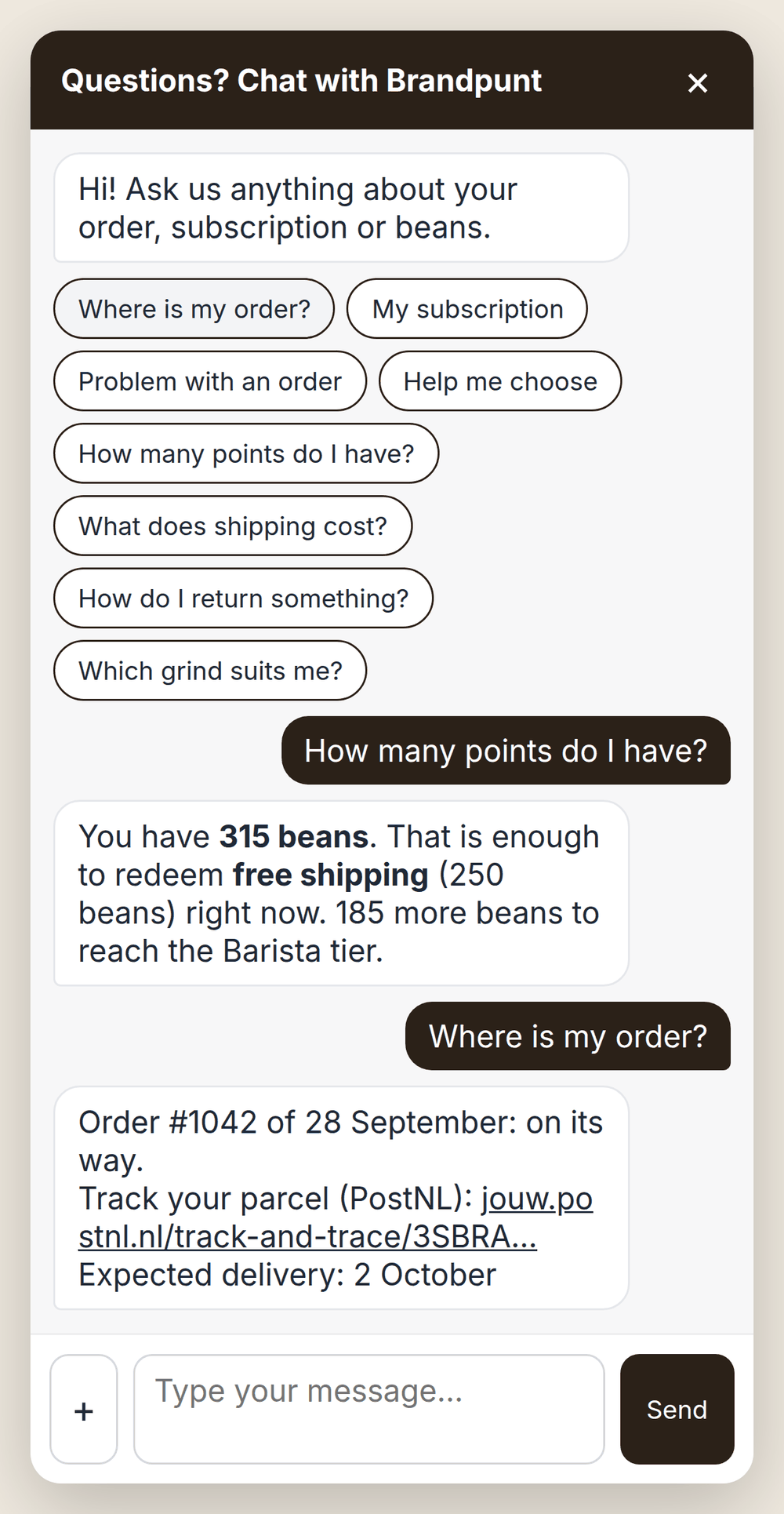
Which buttons there are
| Button | What the customer gets | For whom |
|---|---|---|
| Where is my order? | The status of the last three orders, the carrier's tracking link and the expected delivery date | Logged in: at once. Guest: with order number and e-mail address |
| My subscription | The subscription with the next delivery date and buttons to skip, move, pause or resume | Logged in. A guest gets the link to the customer portal |
| Problem with an order | A few steps: which order, what is wrong, an explanation. Then the report is with your team | Logged in, or as a guest with order number and e-mail address |
| Help me choose | Product advice by the AI from your own catalogue, with product cards | Everyone, when the AI and product advice are on |
| How many points do I have? | The balance, the tier and what the customer can redeem, answered by the AI | Logged in, when you have a points programme |
| Your own articles | The text of the article from the knowledge base | Everyone |
You switch each button on or off under AI chat › Settings › 'Buttons in the chat'. The button 'My subscription' only appears when your shop has subscriptions.
Tracking an order
- A logged-in customer sees their last three orders with the status (being prepared, shipped, on its way, delivered), the tracking link and the expected delivery date when the carrier passes it on.
- A guest fills in the order number and the e-mail address of the order. Only when both are exactly right do they see the status. Which of the two is wrong is never said.
- A guest can look up an order six times per hour. After that the chat asks to try again later or to ask the question.
Managing a subscription
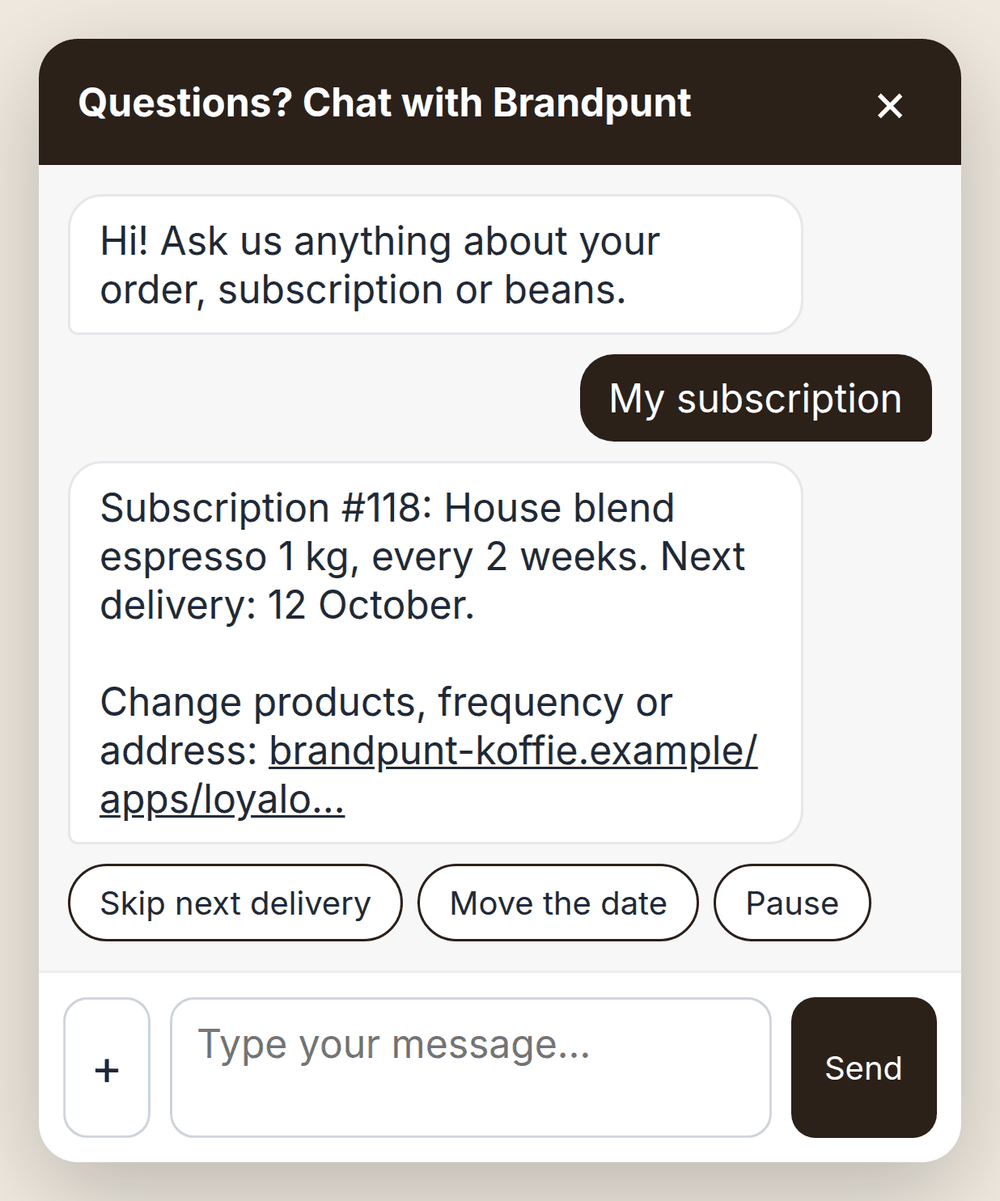
- The customer sees their running subscriptions with products, frequency and the next delivery date.
- The buttons follow the same permissions as the customer portal. What you switch off under Subscriptions › Settings is not possible in the chat either.
- A delivery can be moved to a date from tomorrow up to 90 days ahead.
- Every change is kept in the conversation, so your team sees what happened.
Reporting a problem with an order
Without this button a customer types 'my parcel is broken' and your team first has to ask which order it is about. With the button you get everything at once.
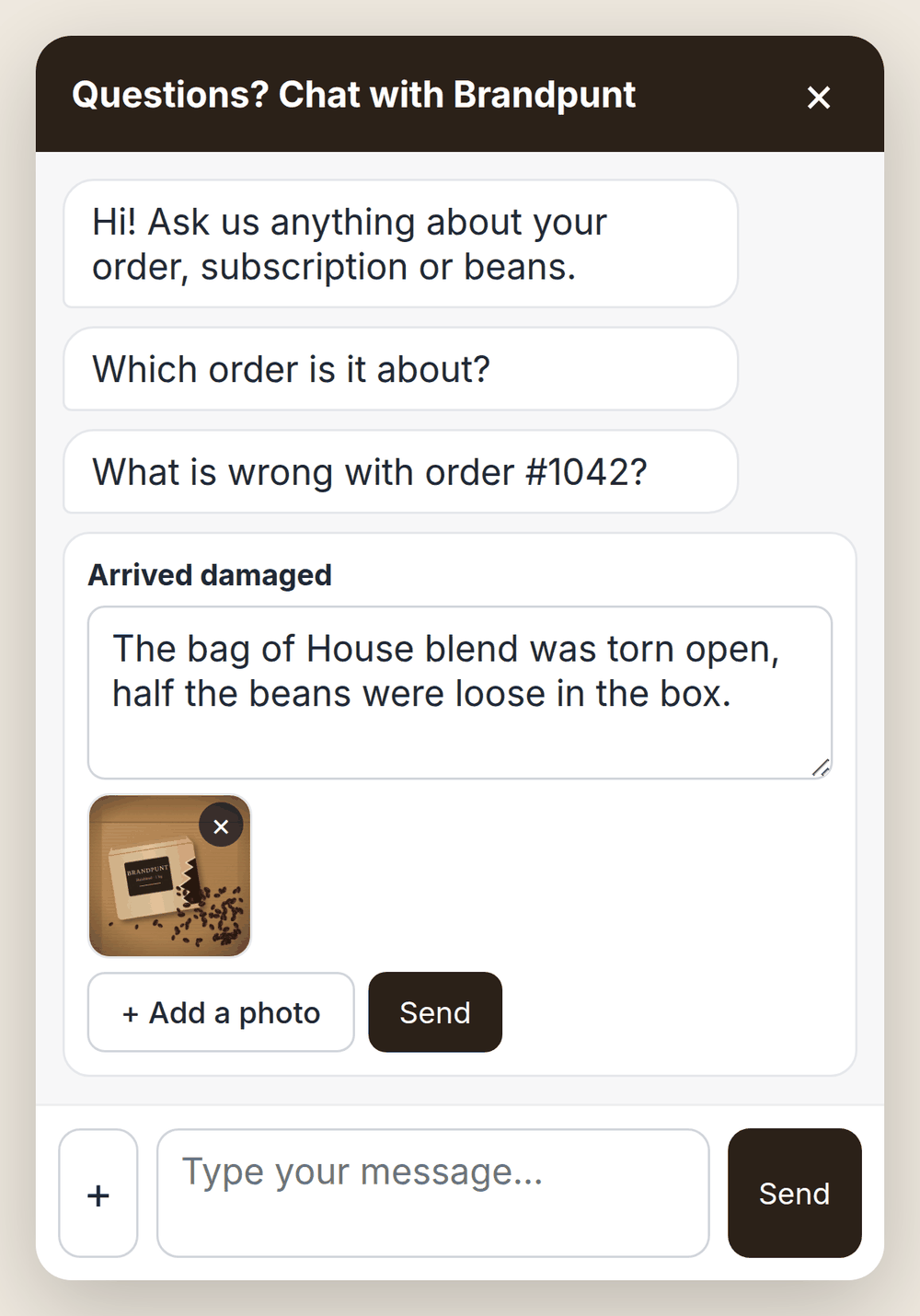
- The customer picks the orderA logged-in customer picks from their last five orders. A guest fills in the order number and the e-mail address of the order.
- The customer picks what is wrongNot received, arrived damaged, received the wrong product, something is missing, I want to return something, or something else.
- The customer explainsA short text field, with up to three photos, of the damage for example. Then the report is in the conversation and the customer hears that your team will reply, here and by e-mail.
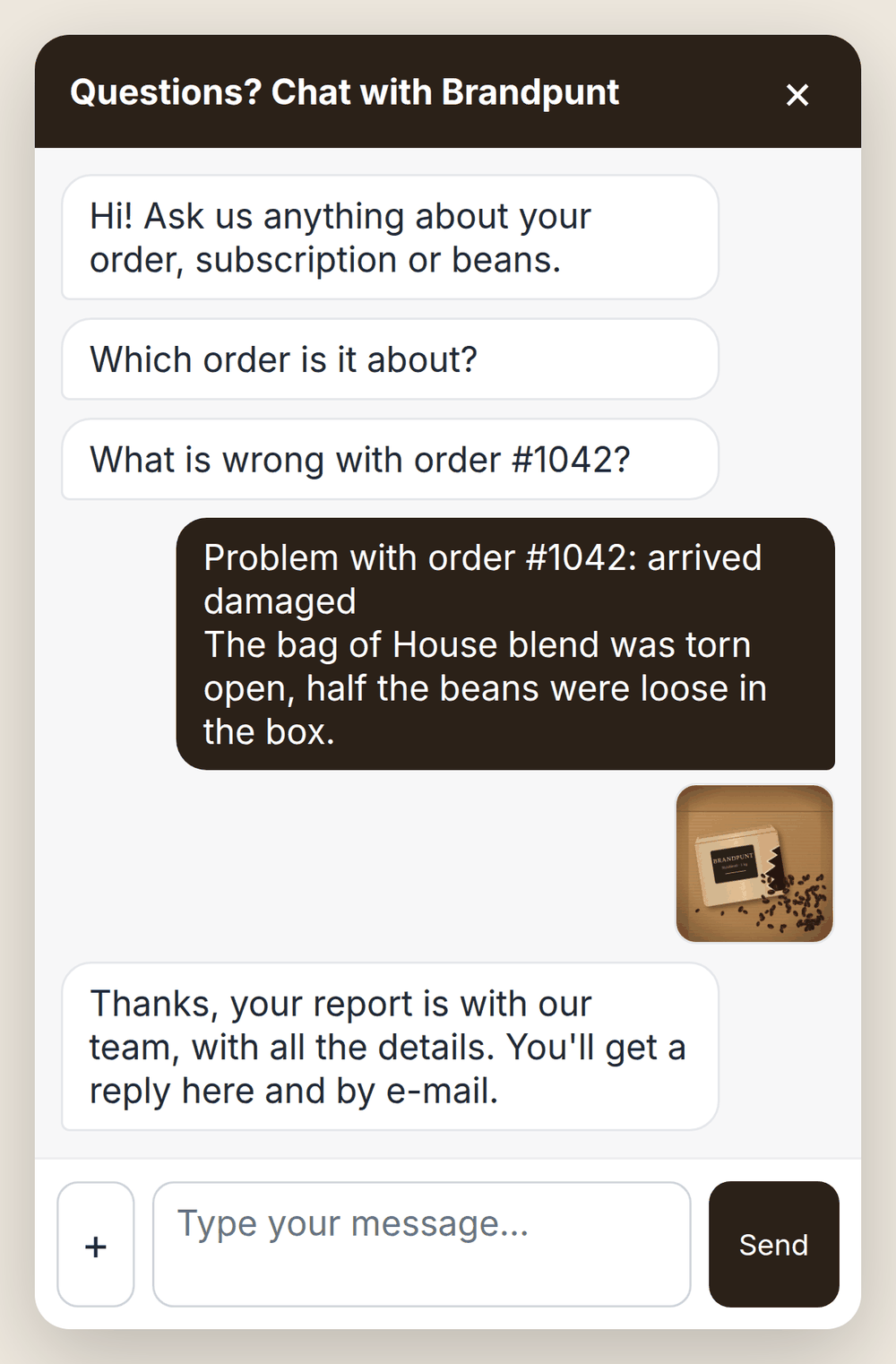
In the inbox you get one complete conversation:
- the subject, for example 'Problem with order #1042: arrived damaged'
- the order with date, status and tracking link
- the items in the order
- the kind of problem and the customer's explanation
- the photos the customer sent along
- the topic 'Delivery' or 'Return or refund', so your rules can tag the conversation, assign it or set a priority
Outside your opening hours the customer hears when your team is back.
Sending photos
A photo often says more than a description: a torn bag, a wrong label, an error message. With the plus next to the text field a customer sends photos with a message; a problem report has the button to add a photo.
- Up to three photos per message: JPG, PNG or WebP. On a phone the customer picks a photo from the gallery or takes one.
- Large photos are made smaller in the browser before they are sent. That is quick, also on mobile data.
- The AI looks at the photos and uses them in its answer and in the summary for your team. With a photo too, it does not decide about money by itself.
- Your team sees the photos as thumbnails in the conversation; a click enlarges them.
- There is a limit per conversation and per day, so the chat is not used as storage. Video and other files are not possible.
- Photos of a closed conversation are removed after 180 days.
You switch this on or off with 'Attach photos' under AI chat › Settings › 'Buttons in the chat'. It is on by default.
Product advice: Help me choose
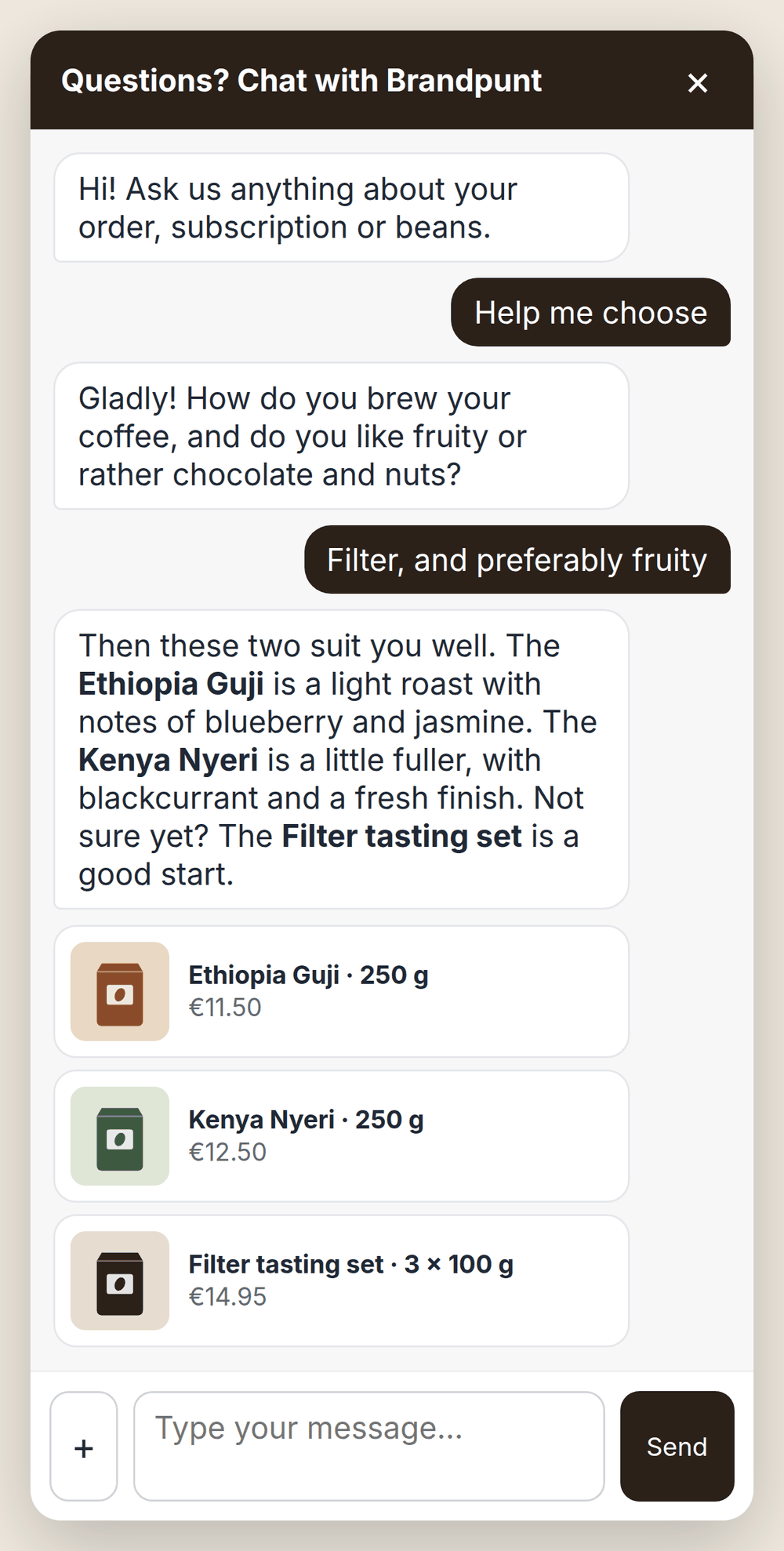
- The AI searches your own catalogue and only finds products that are live in your webshop.
- It advises from what the product page says: description, product type, tags, price and stock. It does not invent properties that are not there.
- If it needs something first, such as taste, use or budget, it asks one short question.
- The products it recommends appear as cards under its answer, four at most. A click opens the product page; the chat stays open there.
- It also works when a customer types: 'which coffee suits a French press?'
The AI only knows what is in your product description, product type and tags. If they say 'fruity, light roast, for filter', it can use that. It rarely recommends a product without a description.
Questions the AI answers at one click
Under 'Questions the AI answers with one click' you choose the standard questions or your own. Write your own questions one per line, six at most, each up to 80 characters. Every line becomes a button; a click sends the question to the AI. Fixed topics such as shipping and returns are better as an article in the knowledge base: then the answer is fixed.
Rating afterwards
When a conversation is closed, the chat asks for a score from 1 to 5, with a remark if the customer wants to add one. You switch this on or off with 'Ask the customer for a rating'. The outcome is under AI chat › Statistics.
Do the buttons work when the AI is off?
Yes. Tracking an order, managing a subscription, reporting a problem and your articles work without the AI. 'Help me choose' and the question buttons need the AI.
Can a guest send a photo with a problem?
Yes. A guest and a logged-in customer can send up to three photos with a report or a message in the chat. The AI looks at them and your team sees them in the inbox.
Can my team send a file back?
Yes. In the inbox 'Attachment' adds photos or a PDF to your reply, a return label for example. The customer sees them in the chat and gets them with the e-mail.
In which languages are the buttons?
In Dutch, English or German, in the language of your webshop. Your own articles and own questions appear as you wrote them.
Can a customer cancel through the chat?
Not with a button. When a logged-in customer asks the AI, it goes to your team: as a proposal you approve with one click, or as a handed-over question when the AI may only look things up.
Set up AI chat
Switch on the chat in your webshop, decide what the AI may do by itself and how it writes, and test its answers before customers see them.
Knowledge base: where the AI gets its answers
Write articles the AI answers from, see which questions it could not answer and show your articles on a help page in your webshop.
Inbox: answering conversations
Work in one inbox for chat, e-mail and contact form: views, assigning, macros, an AI draft, actions for the customer and proposals by the AI.