AI chat is not for sale yet. You can already use it in the 14-day trial, and Loyalo can switch it on for your shop on request. The price will be €49 per month next to a Loyalo plan or €79 per month on its own.
Write an article
- Open the knowledge baseGo to AI chat › Knowledge base and click 'New article'.
- Write the title as a questionUse your customer's words: 'How do I return something?' instead of 'Return policy'. The title is also the text of the button in the chat.
- Write the answerThe most important thing first, in plain text. An article is at most 8000 characters.
- Choose whether it is publicPublic: as a button in the chat and on the help page. Not public: only for the AI and your team.
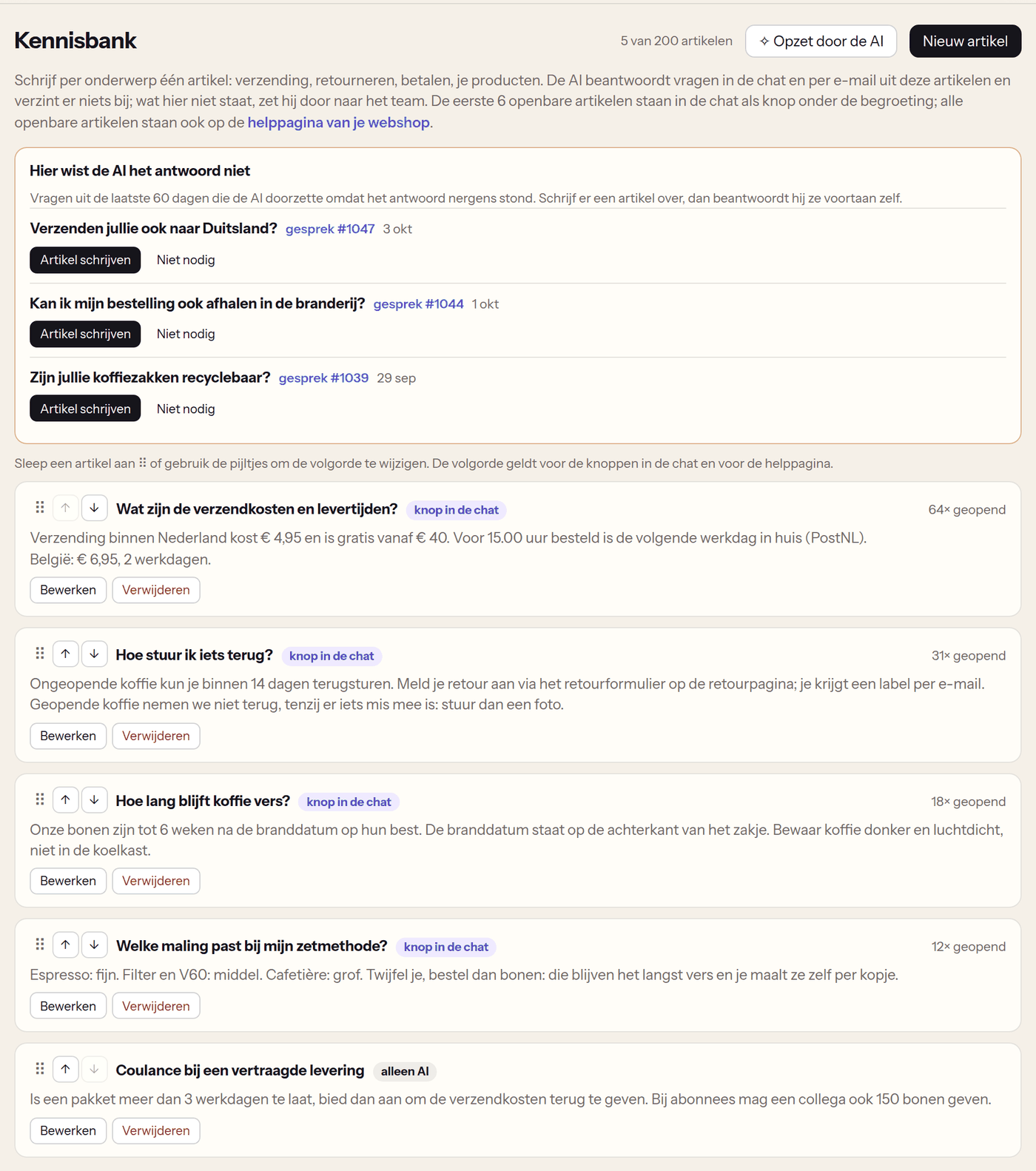
- You can make up to 200 articles.
- Write bold text between two asterisks: **free from €40**. Write a link in full (https://…); it is clickable in the chat and on the help page.
- Lines that start with a dash become a list on the help page.
- The AI takes the text literally. So leave no dots or 'to be filled in'.
An article that is only for the AI is not a button in the chat and not on the help page. The AI can answer from it, though. So put nothing in it that a customer must not know.
A first draft by the AI
With 'First draft by the AI' the AI drafts a first set of articles from what is already known: your shop's policy pages (shipping, returns, terms, contact), the text under Settings, what customers may do in the customer portal and your points programme. Nothing is saved. You read each article and choose 'Add', 'Adjust first' or 'Not needed'.
- The AI writes no article about a topic the sources say nothing about.
- If your shop is still behind a password, the policy pages cannot be reached. The draft then only uses your settings in Loyalo.
Where the AI did not know the answer
When the AI hands a question over because the answer was nowhere, Loyalo remembers that question. At the top of the knowledge base you see the questions of the last 60 days, with a link to the conversation.
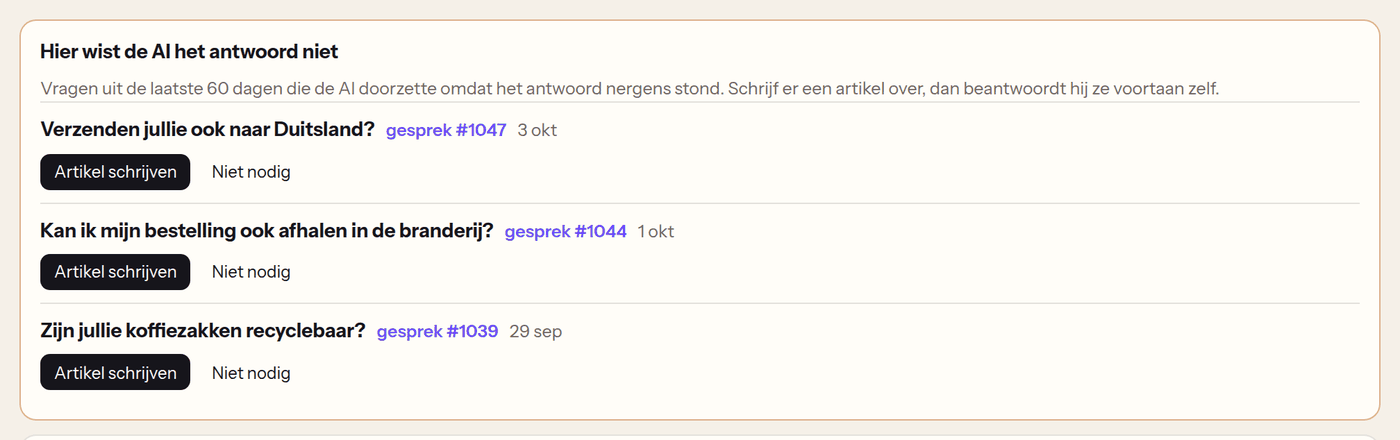
- 'Write article' opens a new article with the question as its title. After saving, the question leaves the list.
- 'Not needed' removes the question without an article.
- Have a look here every week. Every article you write is a question the AI answers by itself from then on.
Buttons in the chat
The first six public articles appear as buttons under the greeting in the chat. A click shows the text at once, without the AI. With more than six public articles, a link to the help page is added. You switch the buttons on or off under AI chat › Settings › 'Articles from the Knowledge base'.
You set the order yourself: drag an article by the handle on the left, or use the arrows next to it. The top six public articles are the buttons in the chat; the help page follows the same order. The new order is saved at once.
The help page in your webshop
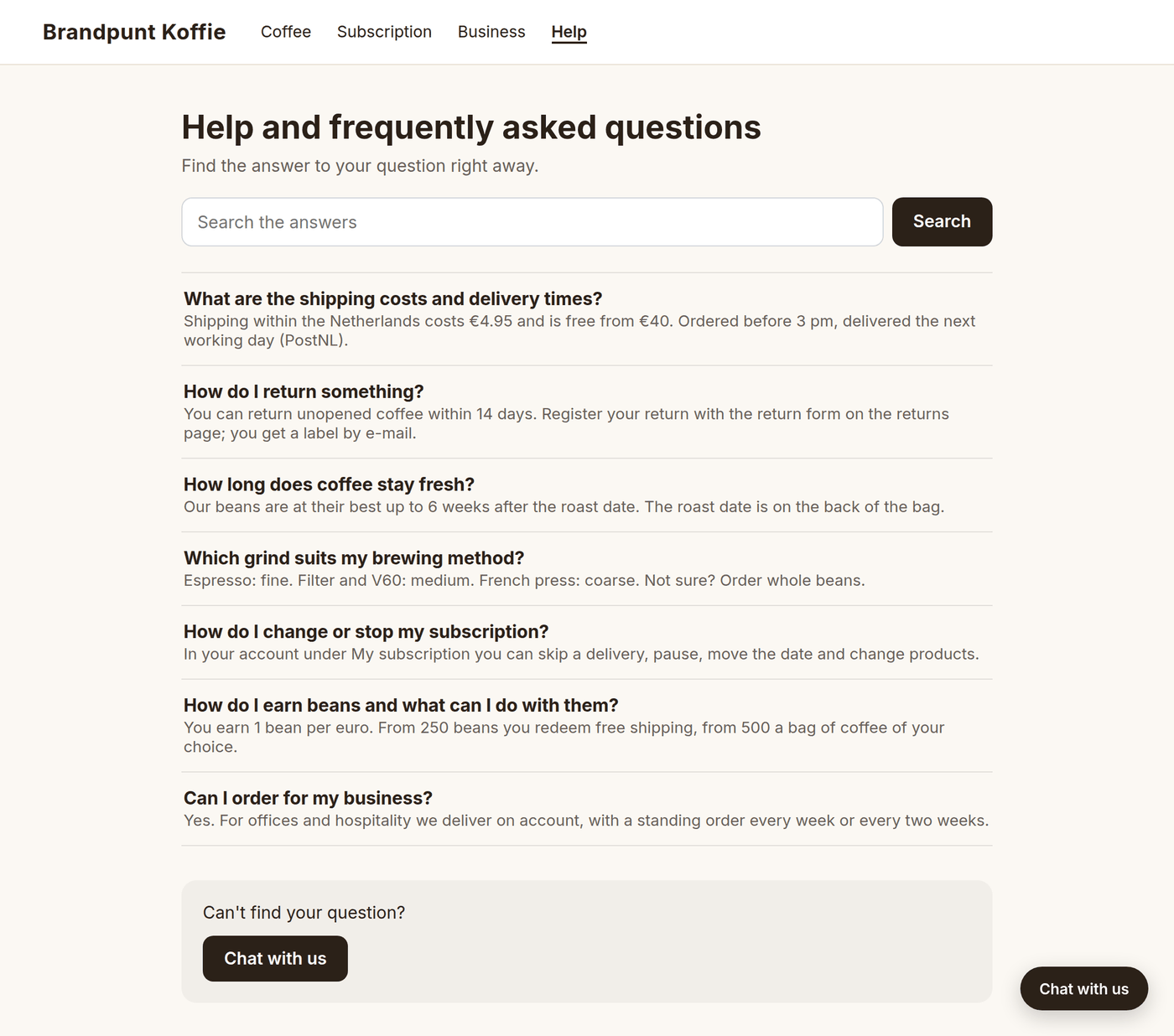
All public articles are on one page in your own theme: yourshop.com/apps/loyalo/help. At the top is a search field that searches titles and texts. Every article has its own address, so you can share a link to an answer. At the bottom is the button 'Chat with us' when the chat is on.
- Check the settingUnder AI chat › Settings, 'Help page on your online shop' is on by default. The address of the page is shown there too.
- Put the link in your menuIn Shopify go to Online Store › Navigation and add a menu item with the link /apps/loyalo/help, for example 'Help' or 'FAQ'.
The page shows the texts in the language you wrote them in. The fixed texts (search, 'All topics') are in Dutch, English or German, in the visitor's language.
Figures per article
Every public article shows how often it was opened, in the chat and on the help page together. With a large knowledge base the AI looks up the right article itself; then you also see how often it looked an article up.
How many articles do I need?
Start with the questions that come in most: shipping costs and delivery time, returns, payment, changing your subscription. Then add what appears under 'The AI did not know the answer here'.
Do I have to write articles in several languages?
No. The AI reads your articles and answers in the customer's language. The buttons in the chat and the help page show the text as you wrote it.
Does the AI also use the text under Settings?
Yes. The AI uses the text under 'What the AI may say about your shop' and all articles together.
Can I switch the help page off?
Yes, with 'Help page on your online shop' under AI chat › Settings. The articles keep working for the AI and the chat.
Set up AI chat
Switch on the chat in your webshop, decide what the AI may do by itself and how it writes, and test its answers before customers see them.
Buttons in the chat and product advice
What customers arrange themselves in the chat: tracking an order, changing the subscription, reporting a problem and asking for product advice.
Rules, ratings and figures
Let conversations be tagged, assigned and answered by themselves, ask customers for a rating and see what the AI solves and how fast your team replies.