Where the programme is shown
| Place | What the customer sees | How you switch it on |
|---|---|---|
| Product page | The balance, the progress towards the next reward or tier and what this product earns in points | In the theme editor, add the block 'Loyalo ledenvoordeel' to the product page |
| Member price | The price with the tier discount, below the product price | Add the block 'Loyalo ledenprijs' to the product page |
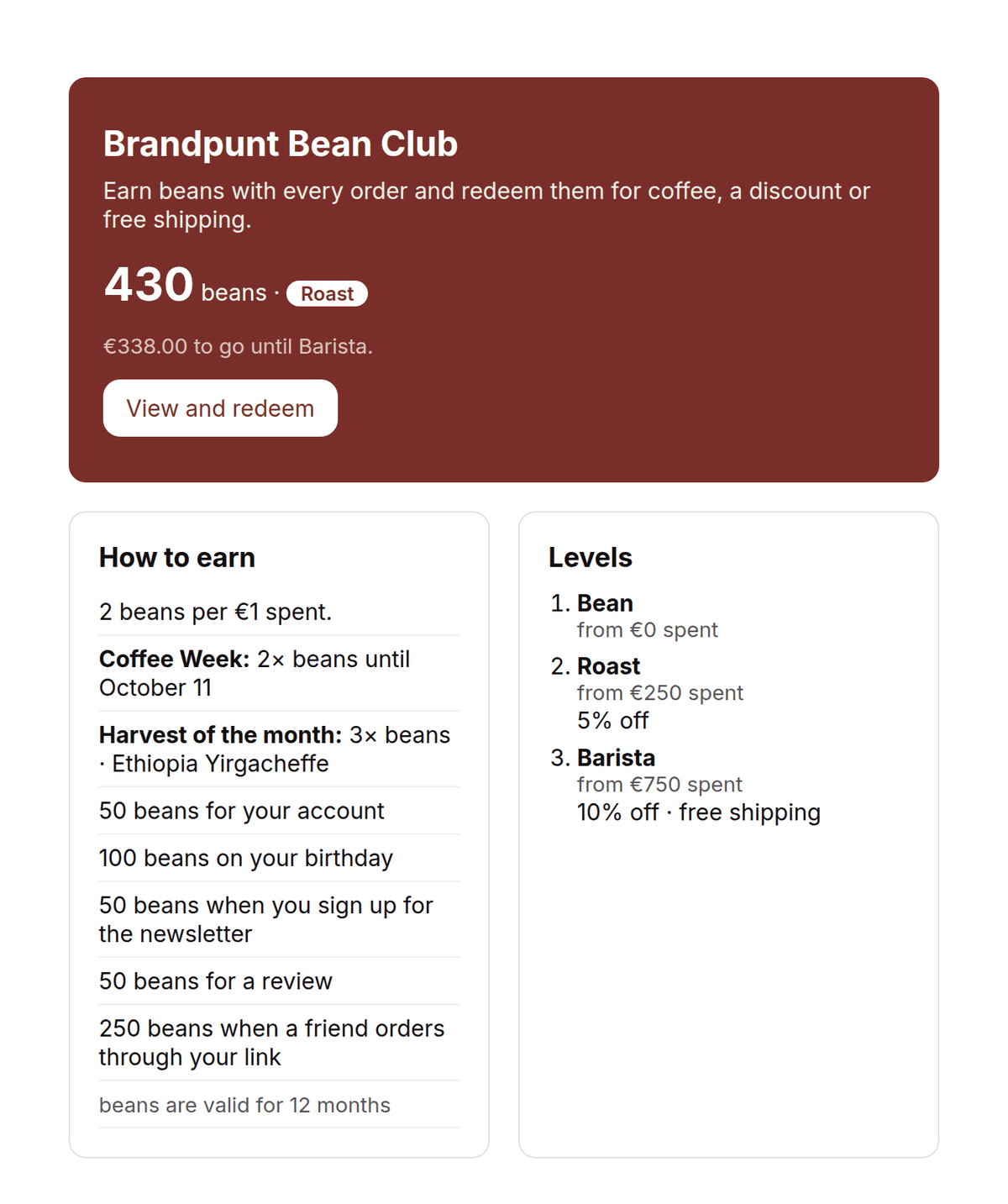
| Rewards page | How to earn, the levels, the rewards and, for a logged-in customer, the balance and tier | Create a page in your theme and add the block 'Loyalo spaarpagina' |
| Rewards button and cart | A button with balance, tier, rewards and codes, and the points of the order in the cart | Switch on 'Loyalo' under App embeds in the theme editor |
| Customer account | Balance, activity, codes, rewards, ways to earn and the levels | Add the Loyalty page to the menu of the customer account in Shopify |
| Checkout and thank-you page | On Shopify Plus, redeeming in the checkout; on the thank-you page what the order earned and the customer's share link | Add Loyalo's block in the checkout editor |
| Till | Your staff see the customer's points and tier and put a reward on the receipt | Add Loyalo's tile in Shopify POS; points and tier are also shown with the customer |
The 'Loyalo' app embed handles the rewards button, the tier discount and the points in the cart in one go. You switch each part on or off there.
Brand style and copy
Under Loyalty > Brand you give the programme a name and a short explanation, and choose the main colour, the font and the rounding of the corners. That way the rewards page, the rewards panel and the e-mails match your shop. You also enter the link to your loyalty page there; the button to redeem points in e-mails goes to it. The name of your points comes from the Points page and has a translation per language.
E-mails to customers
| When | |
|---|---|
| Enough points for a reward | As soon as the balance reaches the cheapest reward |
| Discount code after redeeming | Straight after redeeming a reward |
| New tier reached | When the customer reaches a higher tier |
| Tier is ending | During the grace period, before the customer drops back |
| Points expiring soon | A configurable number of days before points expire |
| Monthly points summary | On the first day of the month |
| Points for a referral | When the customer gets points for an invited friend |
You switch each e-mail on or off and edit it under Settings > Emails. If you use Klaviyo, you choose per e-mail whether Loyalo sends it or your flow.
Redeeming on the product page
When a customer has enough points, the block 'Loyalo ledenvoordeel' shows the link Redeem. With the rewards button on, it opens the panel, where the customer picks a reward. Without the rewards button the customer redeems the reward named in the block with one click: the link then states the number of points. The code is put on the cart and a free product goes straight into it.
If you want that with the rewards button on as well, choose 'Always redeem directly' under 'Click on Redeem' in the block. The customer also gets the code by e-mail.
Does a customer who is not logged in see anything?
Yes. The block on the product page then shows what earning brings, and the rewards page shows how the programme works.
Do I need Shopify Plus?
Only for redeeming in the checkout itself. The blocks in your theme, the customer account and Shopify POS work on every Shopify plan.
Do purchases in the physical shop earn points?
Yes. Purchases through Shopify POS earn points, just like orders in the webshop.
Can I show the balance in my own e-mails too?
Yes. The balance and the tier are a profile field in Klaviyo and a metafield on the customer in Shopify. See the article Klaviyo integration.
Setting up points and bonus points
Switch on the points programme, choose how many points a euro earns, set expiry and give bonus points for an account, birthday, review or referral.
Rewards and redeeming
Create rewards customers redeem their points for: a discount, free shipping, a free product, store credit or a donation, and see how redeeming works.
Emails and brand style
Loyalo sends emails about subscriptions and points in your own brand style, in the customer's language. Per email you choose whether Loyalo or Klaviyo sends it.